


Blog
What is Kiosk Mode and How to Enable It?
Modern businesses rely heavily on shared devices such as tablets, kiosks, and desktop systems to serve employees and customers efficiently. However, unrestricted access to these devices often leads to distractions, misuse, and security risks. Employees may access non work related apps, while customers may experience delays or confusion when systems are not properly controlled.
Kiosk mode solves this challenge by turning standard devices into focused, secure tools. It restricts access to approved applications only, ensuring users interact only with what is relevant. From self service kiosks to workplace check in systems, kiosk mode has become essential for organizations aiming to improve efficiency, security, and user experience.
This guide explains kiosk mode, its types, benefits, real world use cases, and how businesses can enable it effectively.
What Is Kiosk Mode?
Kiosk mode is a device configuration that limits user access to specific applications or functions. Instead of allowing full system access, the device runs only pre approved apps designed for a particular purpose.
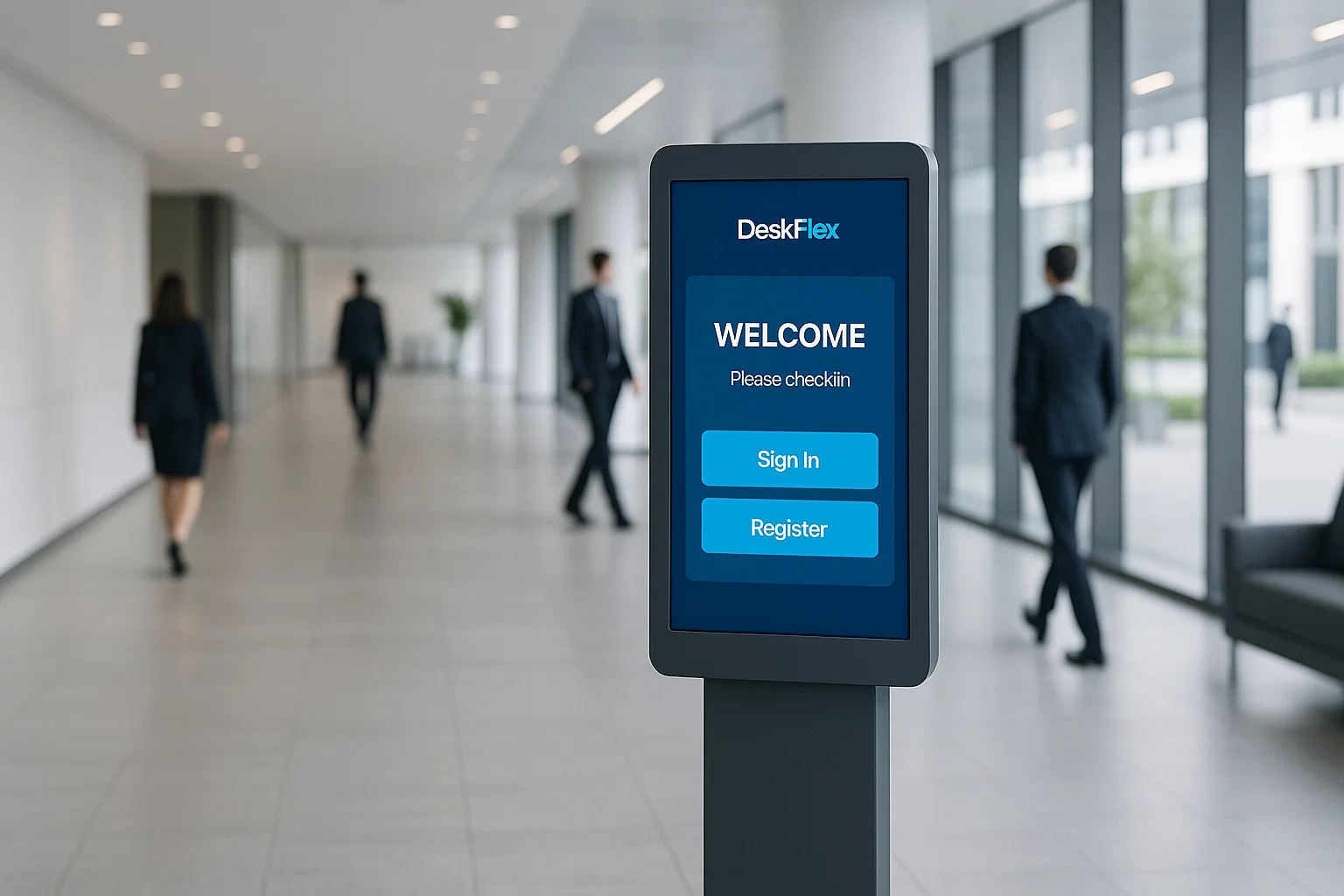
For example, a lobby kiosk may allow visitors to sign in, while a restaurant kiosk displays a digital menu. By locking devices into a controlled environment, kiosk mode prevents misuse, enhances security, and delivers a consistent user experience.
Kiosk mode is widely used across industries where devices are shared, customer facing, or critical to daily operations.
What Are the Different Types of Kiosk Mode?
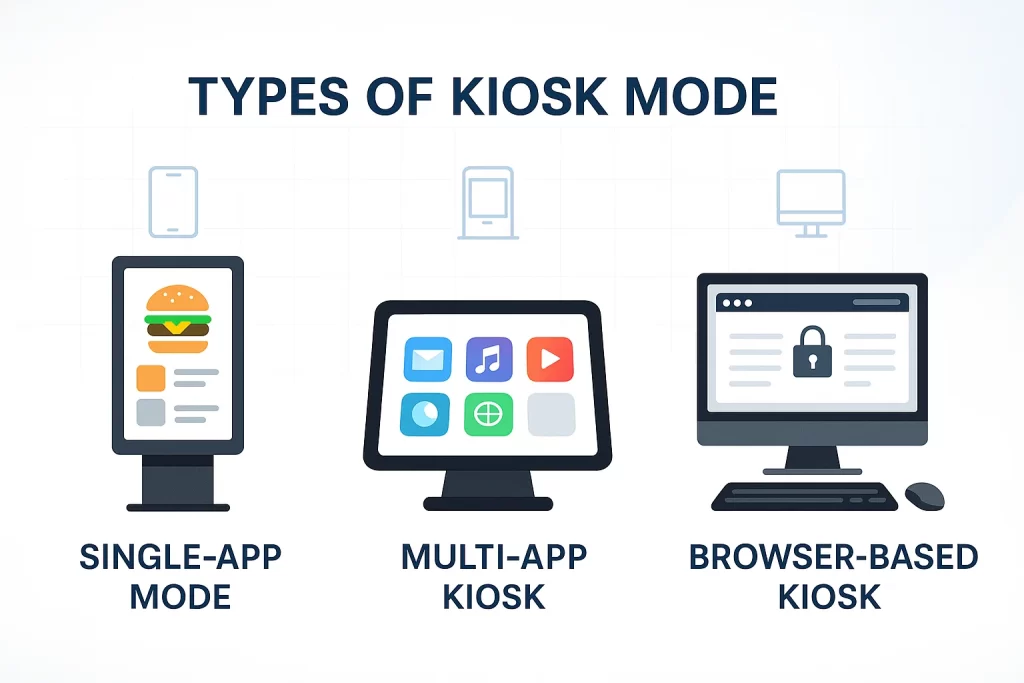
Different organizations use kiosk mode in different ways, depending on how devices support daily operations.
Some businesses need strict control over a single task, while others require limited access to multiple tools. To meet these needs, kiosk mode is available in several configurations, each designed for specific use cases.
Single App Kiosk Mode
Single app kiosk mode locks the device to one specific application and blocks access to all other features. Users cannot exit the app, change settings, or access other programs without administrator permission. This mode is ideal for environments where devices serve one clear purpose, such as self service ordering systems, visitor check in kiosks, or digital signage displays. By eliminating distractions and misuse, single app mode improves focus, security, and overall reliability.
Multi App Kiosk Mode
Multi app kiosk mode allows access to a selected group of approved applications only. Administrators can define which apps are available while blocking everything else on the device. This setup works well in workplaces, schools, and training environments where users need multiple tools to complete tasks. Multi app mode provides flexibility while maintaining control, ensuring devices remain productive and secure.
Browser Based Kiosk Mode
Browser based kiosk mode restricts device access to a secure web browser. Users can interact only with specific websites or web based applications approved by administrators. This mode is commonly used in libraries, examination centers, and public access terminals. It helps prevent unauthorized browsing, protects data, and ensures a safe and consistent web experience.
Benefits of Kiosk Mode for Business
Kiosk mode helps businesses streamline operations, improve customer experiences, and maintain secure device environments. By restricting devices to specific functions, organizations can deliver consistent performance across customer facing and internal systems.
1. Enhanced Customer Service
Kiosk mode improves customer service by providing fast, self service access to information and transactions. Customers can complete tasks independently without waiting for staff assistance. Clear interfaces and guided workflows reduce confusion and improve satisfaction across customer touchpoints.
2. Increased Operational Efficiency
By automating repetitive tasks, kiosk mode helps teams work more efficiently and reduce manual workload. Employees can focus on higher value activities instead of routine check ins or data entry. Processes become faster and more reliable with fewer errors.
3. Cost Reduction
Kiosk mode lowers operational costs by reducing staffing requirements for basic services. Self service systems minimize printing expenses, manual processing, and long term maintenance efforts. Businesses can handle higher volumes without significantly increasing resources.
4. Improved Security and Compliance
Kiosk mode restricts access to approved applications and settings, protecting sensitive data. It prevents unauthorized usage, system changes, and accidental data exposure. This controlled environment supports compliance with security and privacy standards.
5. Scalability and Flexibility
Kiosk mode solutions scale easily as business needs grow or change. Organizations can deploy kiosks across multiple locations while maintaining centralized control. Flexible configurations allow adaptation to new workflows, industries, or customer demands.
Use Cases of Kiosk Mode in Different Industries
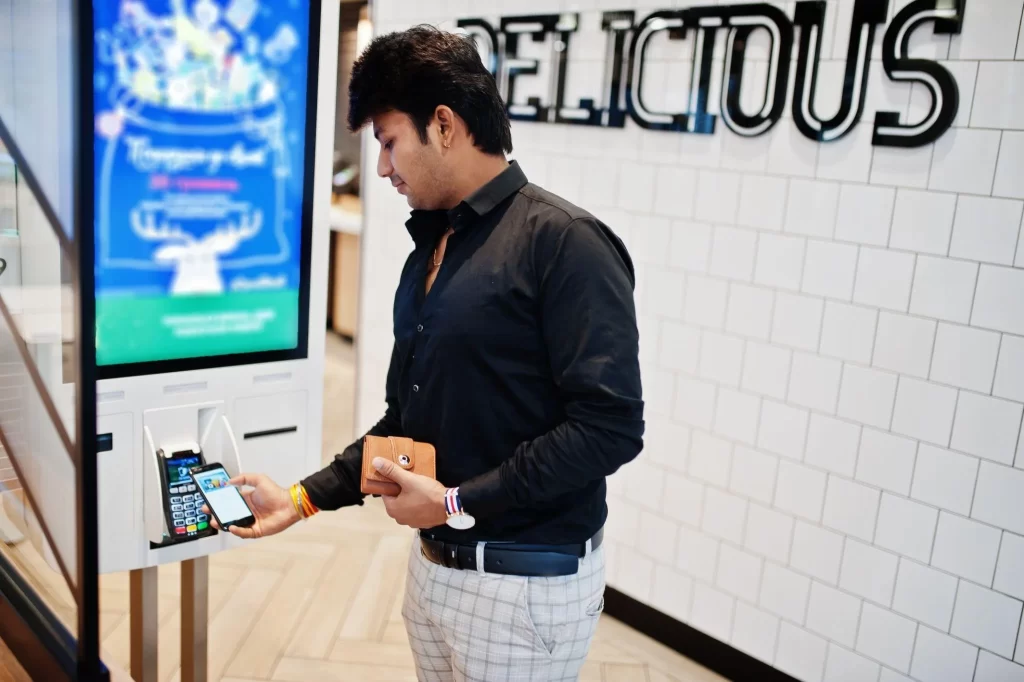
Kiosk mode is widely adopted across industries to improve service delivery, streamline operations, and maintain secure device usage. By limiting access to specific applications, organizations can create reliable self service and workflow solutions.
Retail
Retail businesses use kiosk mode to support self service ordering, price checks, and digital product catalogs. Customers can browse items, place orders, and make payments without staff assistance. This reduces checkout queues, improves order accuracy, and enhances the overall shopping experience.
Hospitality
Hotels and hospitality providers rely on kiosk mode for guest check in, room selection, and service requests. Self service kiosks reduce front desk congestion while offering guests faster access to essential services. This leads to smoother operations and improved guest satisfaction.
Education
Educational institutions use kiosk mode for online exams, student check ins, and learning portals. Devices remain locked to approved educational applications, preventing distractions during assessments. This ensures fair testing environments and secure access to academic resources.
Healthcare
Healthcare facilities use kiosks for patient check in, appointment confirmations, and wayfinding. Kiosk mode protects patient data by restricting access to medical systems and forms. This improves patient flow, reduces administrative workload, and supports compliance with privacy standards.
Logistics
Logistics and warehouse operations use kiosk mode for employee check ins, task assignments, and shipment tracking. Workers can access only the tools required for their role, reducing errors and unauthorized usage. This improves accuracy, accountability, and operational speed.
Banking and Finance
Banks and financial institutions use kiosks for customer onboarding, account inquiries, and form submissions. Kiosk mode ensures secure access to financial services while protecting sensitive customer data. It helps reduce wait times and enhances service consistency in high traffic branches.
Aviation
Airports use kiosk mode for self check in, boarding pass printing, and flight information access. Passengers can complete travel tasks quickly without staff intervention. This improves passenger flow, reduces queues, and supports efficient airport operations.
How to Enable Kiosk Mode?
Enabling kiosk mode depends on the type of device and the level of control required. Some platforms offer basic built in features, while others require enterprise level management tools for long term and large scale deployments.
Android Kiosk Mode
Android devices support kiosk mode through basic features such as screen pinning or advanced management solutions. Screen pinning is suitable for simple, temporary setups where a single app needs to stay active. For business environments, Mobile Device Management solutions provide full control, allowing administrators to restrict apps, push updates, monitor usage, and manage devices remotely.
iOS and iPad Kiosk Mode
Apple devices offer Guided Access for short term kiosk use, allowing devices to remain locked to one application during a session. For permanent business kiosks, Single App Mode is recommended. This setup requires device supervision through a management platform, ensuring consistent enforcement and centralized control across all deployed devices.
Windows Kiosk Mode
Windows devices use a feature called Assigned Access to limit a user account to one specific application. This configuration is commonly used for corporate kiosks, information terminals, and visitor management systems. It ensures users can only interact with the intended interface without accessing system settings.
Future of Kiosk Mode
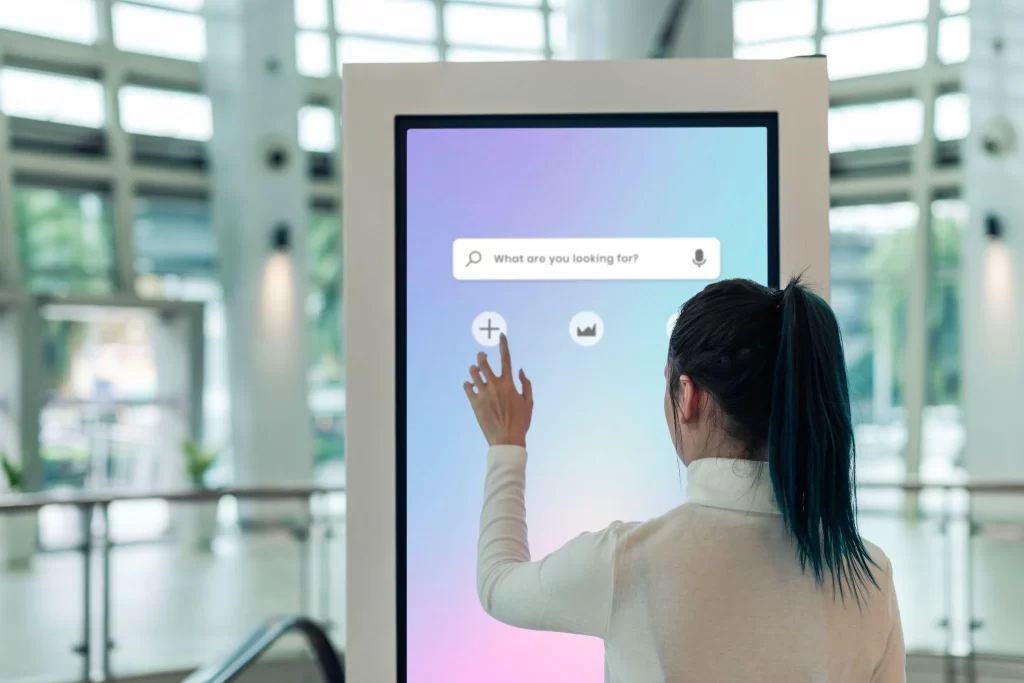
Kiosk mode continues to evolve as businesses adopt smarter, faster, and more connected digital solutions. Modern kiosks now combine touchscreen interfaces, artificial intelligence, and cloud based management to deliver more efficient and personalized experiences for users.
AI Powered Experiences
Artificial intelligence enables kiosks to analyze user behavior and provide personalized recommendations. Smart kiosks can guide users based on past interactions, preferences, or real time demand. This improves engagement while helping businesses deliver more relevant and efficient services.
Biometric Authentication
Biometric technologies such as fingerprint scanning and facial recognition are becoming more common in kiosk environments. These methods provide secure and fast user authentication without the need for passwords or physical cards. Biometric access enhances security while improving convenience in high traffic locations.
Cloud Based Kiosk Management
Cloud based platforms allow organizations to manage all kiosk devices from a centralized location. Administrators can deploy updates, monitor performance, and enforce policies across multiple sites in real time. This reduces IT overhead and ensures consistent kiosk functionality worldwide.
Broader Industry Adoption
Kiosk mode adoption is expanding across industries including aviation, banking, education, and healthcare. Airports use kiosks for self check in and boarding passes, while banks enable secure transactions. Schools and training centers adopt kiosks for digital learning and self service access.
Optimize Visitor Check-In with DeskFlex Lobby Kiosk
DeskFlex offers advanced kiosk mode solutions designed for modern workplaces and customer-facing environments. Businesses can deploy self-service kiosks for desk booking, meeting room reservations, and lobby visitor management without complexity.
The platform provides centralized control over all kiosk devices, ensuring secure access and consistent performance across locations. Administrators can manage settings, monitor usage, and enforce policies while delivering a seamless experience for employees and visitors.
DeskFlex supports hybrid offices, corporate lobbies, and high-traffic environments with reliable kiosk functionality.
With DeskFlex Lobby Kiosk, organizations can streamline visitor check-ins and manage guest access efficiently, improving security and reception workflows.
Book your free demo to explore DeskFlex Kiosk Mode.
Frequently Asked Questions (FAQs)
What is kiosk mode and why is it used?
Kiosk mode is a restricted device setting that limits access to a single app or a set of approved apps. It is used to prevent unauthorized access, reduce distractions, and improve productivity.
What are the main types of kiosk mode?
The main kiosk mode types are single app, multi app, and browser-based kiosk. Each type supports different business needs, from self-service ordering to public access terminals.
Which industries benefit most from kiosk mode?
Kiosk mode is widely used in retail, hospitality, education, healthcare, logistics, banking, and aviation for tasks such as check-in, ordering, information access, and workspace management.
What are the key benefits of kiosk mode for businesses?
Kiosk mode improves customer service, increases operational efficiency, reduces costs, enhances security and compliance, and offers scalability for growing businesses.
How do I enable kiosk mode on Android, iOS, or Windows?
Android supports kiosk mode through screen pinning or MDM solutions. iOS uses Guided Access or Single App Mode. Windows uses Assigned Access to restrict a device to one application.
Can kiosk mode be managed remotely?
Yes, kiosk devices can be managed remotely using centralized tools or MDM platforms. This allows administrators to push updates, enforce policies, and monitor device performance.
Why should I choose DeskFlex for kiosk mode?
DeskFlex offers powerful kiosk solutions for desk booking, meeting room reservations, and lobby visitor management. It provides secure device control, centralized management, and a smooth user experience.