
Remote work continues to grow rapidly across the world, reshaping how companies and employees think about work. According to Remote Work Statistics for 2026, In the United States alone, about 22.1 % of employees worked remotely as of August 2025, representing more than 34 million people choosing to work outside a traditional office setting.
This shift has persisted well beyond the pandemic and shows no sign of reversing. Recent data shows that about 88 % of workers globally prefer hybrid or remote work arrangements, while about 16 % of companies now operate fully remote without a physical office. These trends highlight the increasing need for tools that help distributed teams communicate, collaborate, and stay productive regardless of location.
Virtual office software answers this need by creating a shared online workspace where remote employees can work together as if they were in the same physical place. In this guide, we explore the top 10 virtual office platforms that boost communication, streamline workflows, and improve productivity for remote teams around the world.
What Is Virtual Office Software?
Virtual office software is an online platform that creates a digital workspace where employees can collaborate seamlessly, no matter where they are. It brings together messaging, video conferencing, file sharing, and task management into a single, easy-to-use environment. Remote teams can communicate in real time, track project progress, and keep all work organized in one place.
By simulating the experience of a physical office, virtual office software also helps maintain company culture, encourages team engagement, and ensures that projects are completed efficiently. It is an essential tool for businesses that rely on distributed employees or freelancers, allowing everyone to stay connected and productive without the need for a traditional office space.
Key Features of Virtual Office Software
Virtual office software helps remote teams communicate, collaborate, and stay productive from anywhere. The right platform combines multiple tools into one seamless workspace, making daily work efficient and organized.
1. Real-Time Video Collaboration
Video conferencing allows teams to connect face-to-face regardless of location. Employees can share screens, present ideas, and discuss projects in real time. This helps reduce miscommunication and ensures everyone stays aligned on tasks.
2. Instant Team Messaging
Messaging tools let team members communicate quickly without relying on emails. Channels and group chats keep discussions organized by project or department. Instant communication improves responsiveness and supports faster problem-solving.
3. Secure File Sharing and Collaboration
Files and documents can be shared safely within the platform. Version control ensures everyone works on the most up-to-date copy. This simplifies collaboration, reduces errors, and keeps projects on track.
4. Task and Project Management Tools
Managers can assign responsibilities, set deadlines, and monitor task progress from one place. Teams can prioritize work and check completion status without unnecessary meetings. This feature ensures accountability and timely delivery of projects.
5. Calendar and Time Zone Scheduling
Integrated calendars and time zone management make scheduling meetings easier for distributed teams. Automatic conversion of time zones prevents conflicts and ensures all members can attend. Reminders and notifications help everyone stay on schedule.
6. Integration with Other Productivity Apps
Virtual office software often connects with tools like Google Workspace, Microsoft 365, Slack, and Zoom. Integrations centralize work and reduce the need to switch between multiple platforms. This helps teams stay focused and maintain workflow efficiency.
7. Real-Time Notifications and Alerts
Notifications inform team members about updates, deadlines, or urgent tasks instantly. Employees can respond quickly to changes and stay aware of critical project information. This prevents delays and ensures smooth collaboration.
8. Analytics and Reporting for Productivity
Reporting features allow managers to track task completion, team engagement, and workflow efficiency. Insights from analytics help identify bottlenecks and optimize processes. Data-driven decisions improve team performance and resource allocation.
9. Security and Compliance Features
Virtual office software protects sensitive company data through encryption and user access controls. Compliance with regulations ensures legal and data privacy standards are met. Teams can collaborate confidently knowing their information is secure.
10. Team Engagement and Social Interaction Tools
Virtual coffee breaks, gamified activities, and interactive spaces help maintain team culture. Social features encourage casual interactions that strengthen relationships among remote employees. This improves morale, engagement, and collaboration across the team.
Benefits of Virtual Office Software for Remote Employees
Virtual office software goes beyond communication tools. It helps remote employees stay productive, engaged, and connected, even when working from different locations.
1. Improved Communication
Virtual office platforms provide real-time messaging, video calls, and notifications, keeping employees connected. Clear communication reduces misunderstandings and ensures everyone stays aligned on project goals. Teams can collaborate instantly, making workflow smoother and more efficient.
2. Better Task and Project Coordination
Employees can view tasks, deadlines, and project progress in one central workspace. This reduces delays caused by unclear responsibilities and keeps teams accountable. Project visibility ensures everyone knows what to focus on and when.
3. Enhanced Collaboration
Teams can work together on documents, share files, and brainstorm in real time. Collaboration tools replicate the experience of working side by side, even when members are geographically distributed. This ensures projects move forward without unnecessary delays.
4. Consistent Productivity Anywhere
Remote employees can stay productive regardless of their location using cloud-based tools. Tasks, meetings, and updates are accessible from anywhere, reducing downtime. Employees can plan their work efficiently and maintain high performance.
5. Stronger Company Culture and Engagement
Virtual office software often includes social features like chat channels, virtual coffee breaks, or team activities. These interactions help remote employees feel connected and valued. Maintaining engagement supports morale, loyalty, and team cohesion.
Top 10 Virtual Office Software for Remote Teams
These virtual office platforms help remote employees communicate, collaborate, and stay productive. Each tool is suited to different team needs, from project management to social engagement.
Software | Best For | Key Features | Integrations | Ideal Team Size |
|---|---|---|---|---|
DeskFlex | Hybrid and remote scheduling | Desk and room booking, workflow tracking, messaging | Microsoft Teams, Outlook | Remote and hybrid teams |
Microsoft Teams | Microsoft 365 users | Channels, chat, video calls, file sharing | Word, Excel, PowerPoint | Mid to large teams |
Google Workspace | Document collaboration | Docs, Sheets, Drive, Meet | Google apps ecosystem | Small to large teams |
Slack | Fast messaging | Channels, direct messages, file sharing | 2000+ apps | Small to medium teams |
Zoom | Video meetings | HD calls, webinars, recordings | Google Calendar, Outlook | Teams needing video communication |
Gather | Interactive office | Avatars, social spaces, workshops | Not specified | Remote creative teams |
Sococo | Visual online office | Digital office map, rooms | Slack, Google Meet | Medium to large teams |
Kumospace | Networking and socializing | Virtual spaces, immersive experience | Zoom, Google Calendar | Remote teams |
Workvivo | Employee engagement | Newsfeed, updates, social features | Microsoft 365 | Mid to large teams |
ClickUp | Task management | Projects, goals, documents | Slack, Google Calendar | Teams needing structured workflows |
1. DeskFlex – Best for Hybrid and Remote Teams
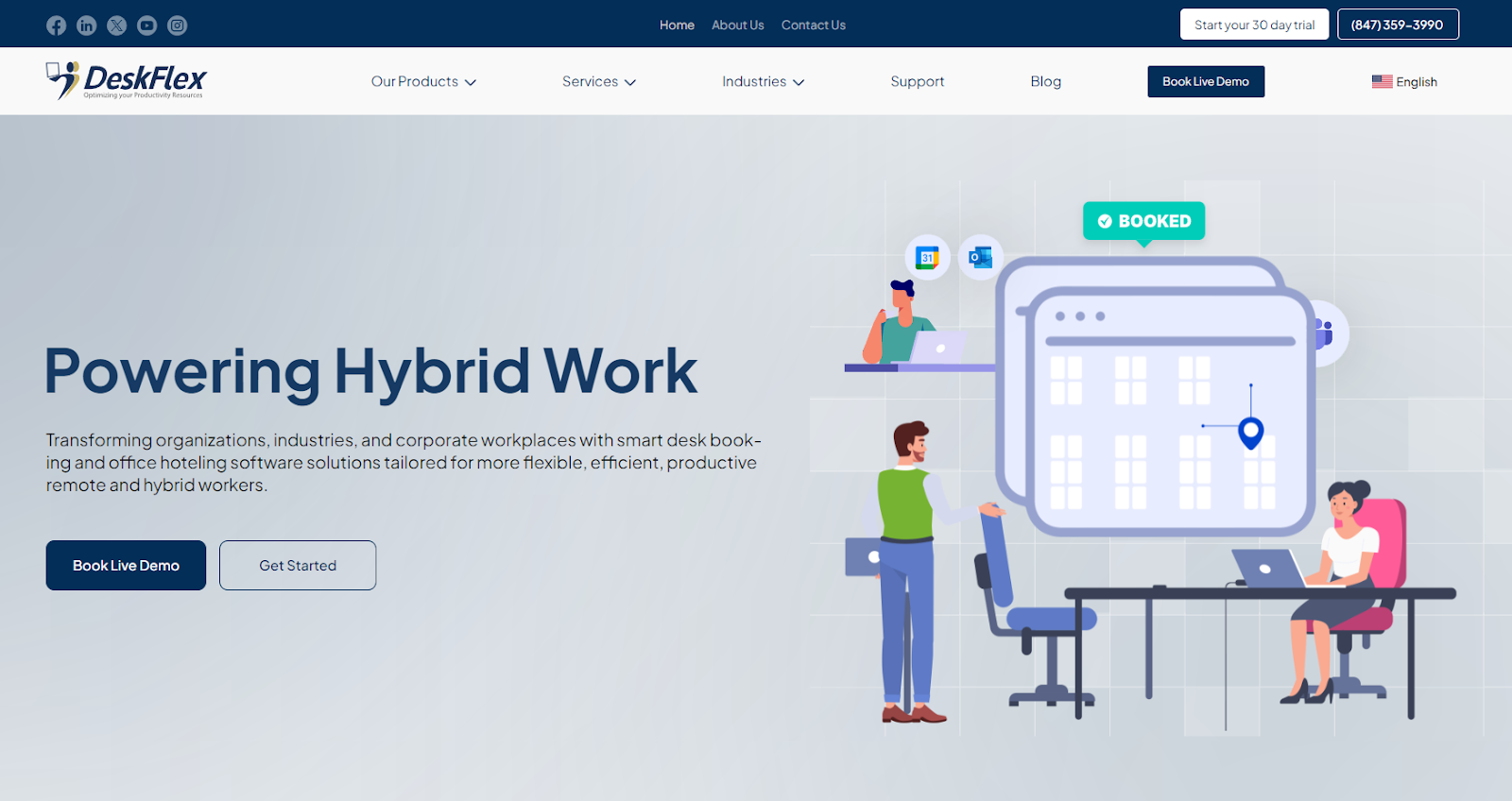
DeskFlex helps organizations manage desk booking, meeting room booking, and workplace scheduling in one system. It supports both remote employees and in-office teams by providing real-time space visibility and workflow tracking. The platform improves coordination, optimizes workspace usage, and integrates smoothly with Microsoft tools.
Key Features:
Desk and meeting room reservations
Real-time workspace tracking
Integration with Outlook and Microsoft Teams
2. Microsoft Teams – Best for Microsoft 365 Users
Keep Exploring
More guides on workplace management, desk booking, and hybrid work.
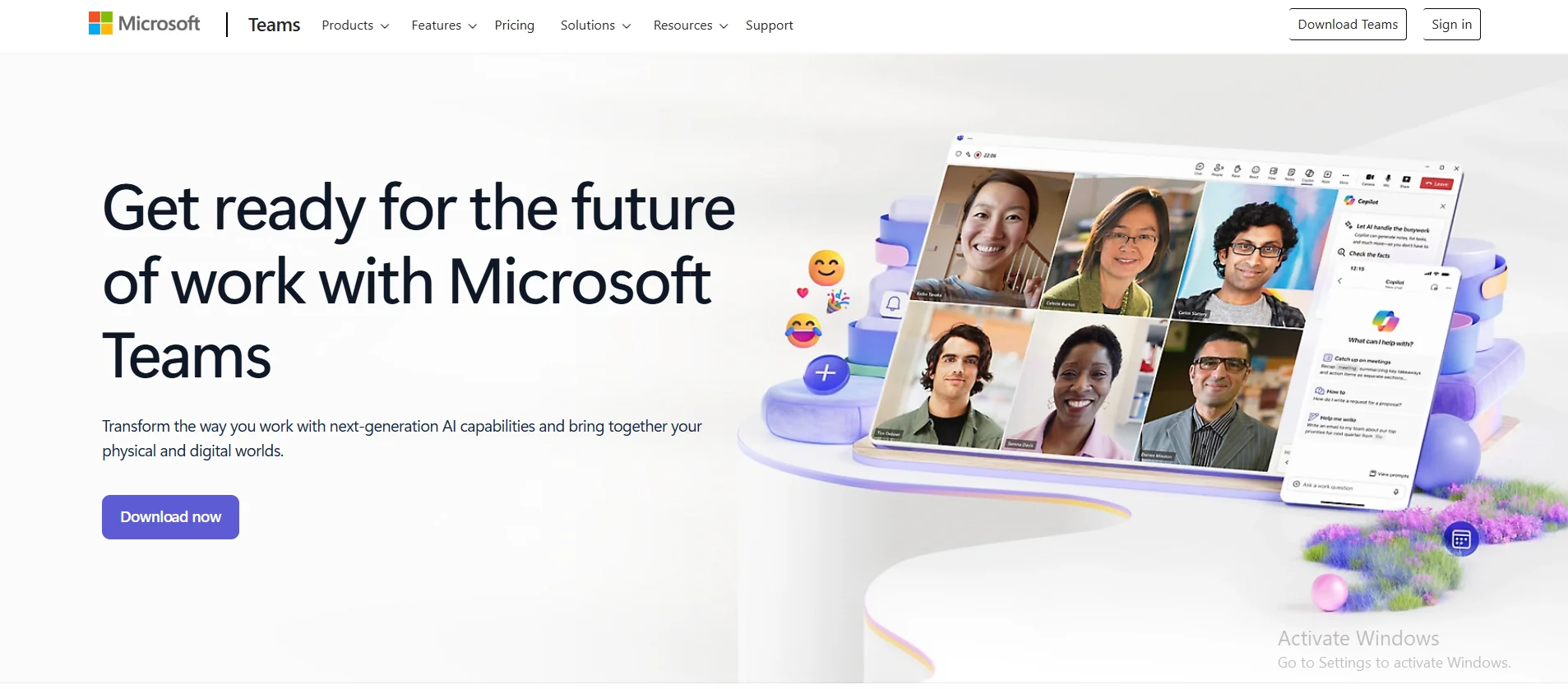
Microsoft Teams combines messaging, video meetings, and file collaboration into a single digital workspace. It allows remote employees to communicate instantly while working on shared documents. Deep integration with Microsoft 365 makes it a practical choice for companies already using Office applications.
Key Features:
Organized team and project channels
Built-in video conferencing
Real-time document collaboration
3. Google Workspace – Best for Cloud Document Collaboration
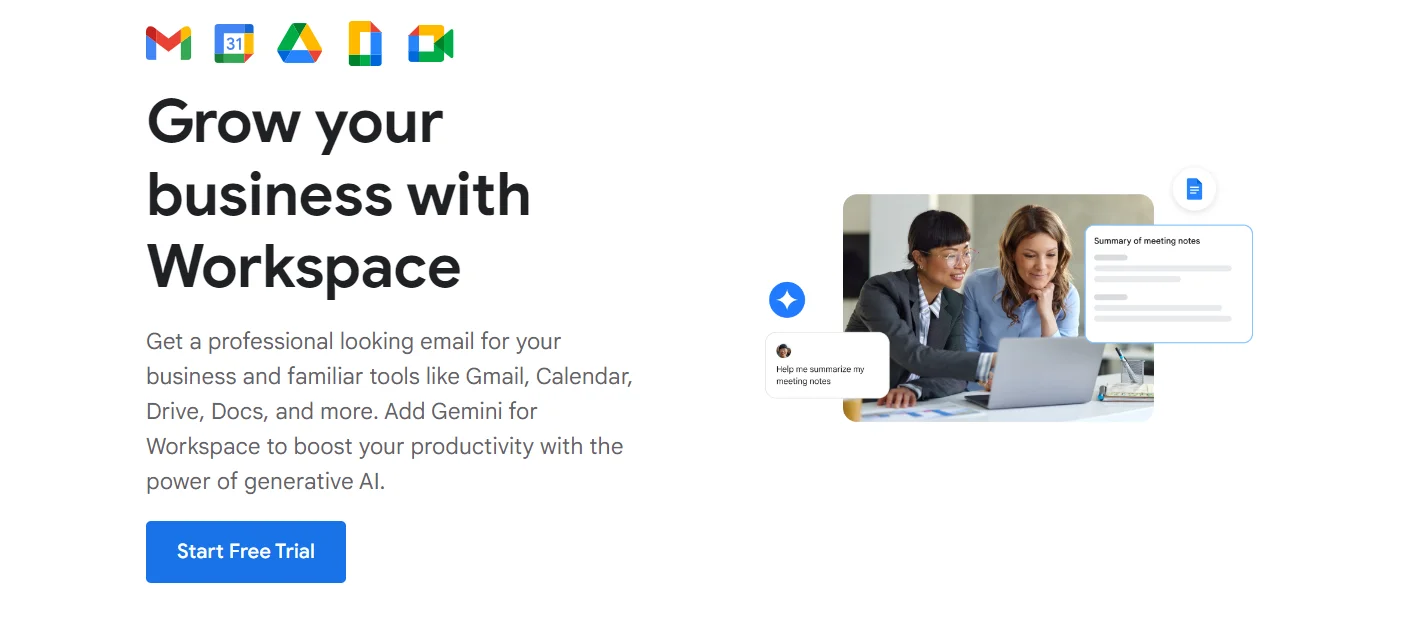
Google Workspace provides cloud-based tools for communication, file storage, and document collaboration. Teams can edit documents simultaneously and store files securely from any location. Its integrated calendar and meeting tools make scheduling simple for distributed teams.
Key Features:
Real-time editing in Docs and Sheets
Secure cloud storage with Drive
Integrated Gmail and Google Meet
4. Slack – Best for Fast Messaging and Team Coordination
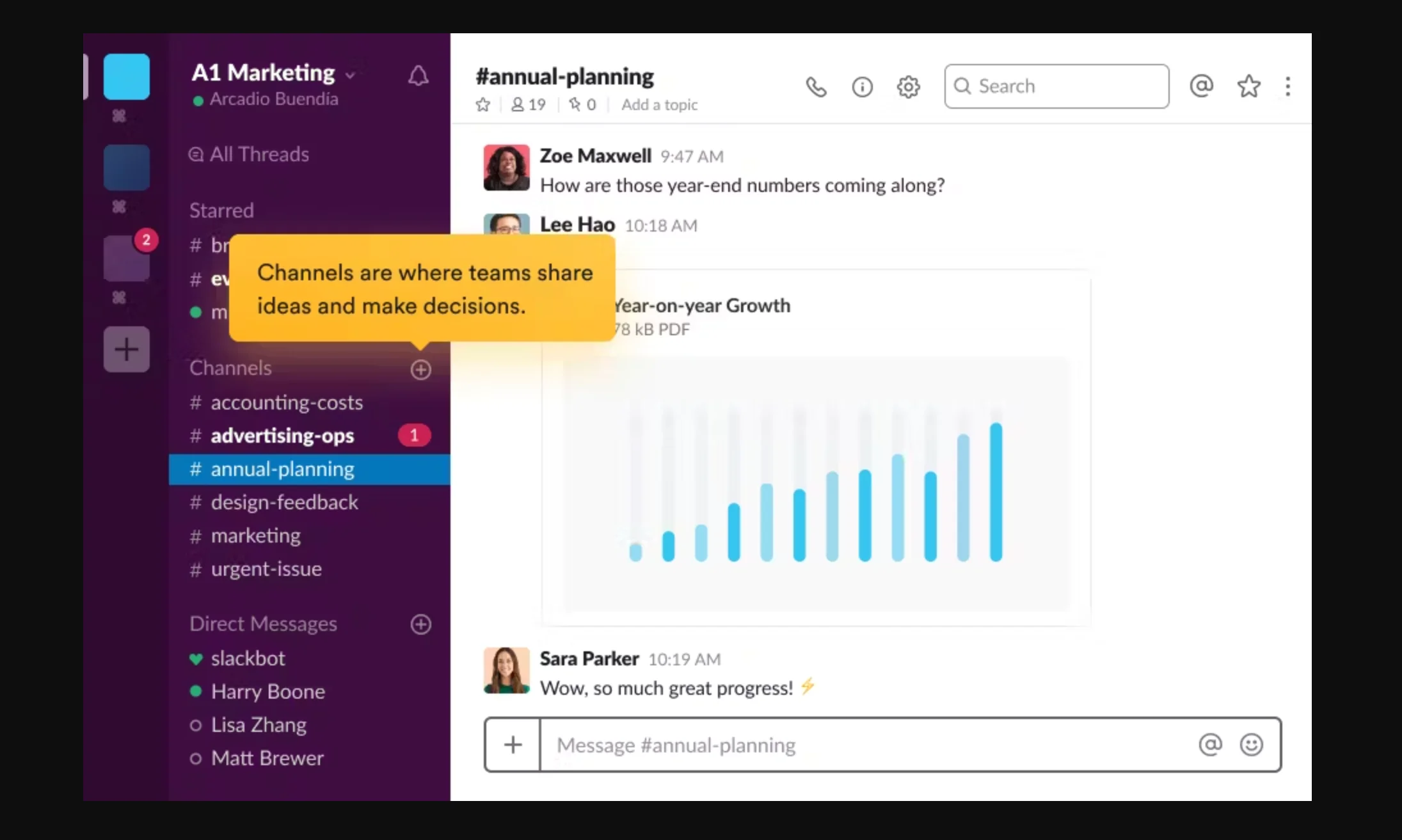
Slack focuses on instant communication through organized channels and direct messaging. It helps remote teams stay aligned with structured conversations and quick updates. Extensive third-party integrations allow teams to centralize notifications and workflows.
Key Features:
Project-based messaging channels
App integrations and automation
File sharing and searchable conversations
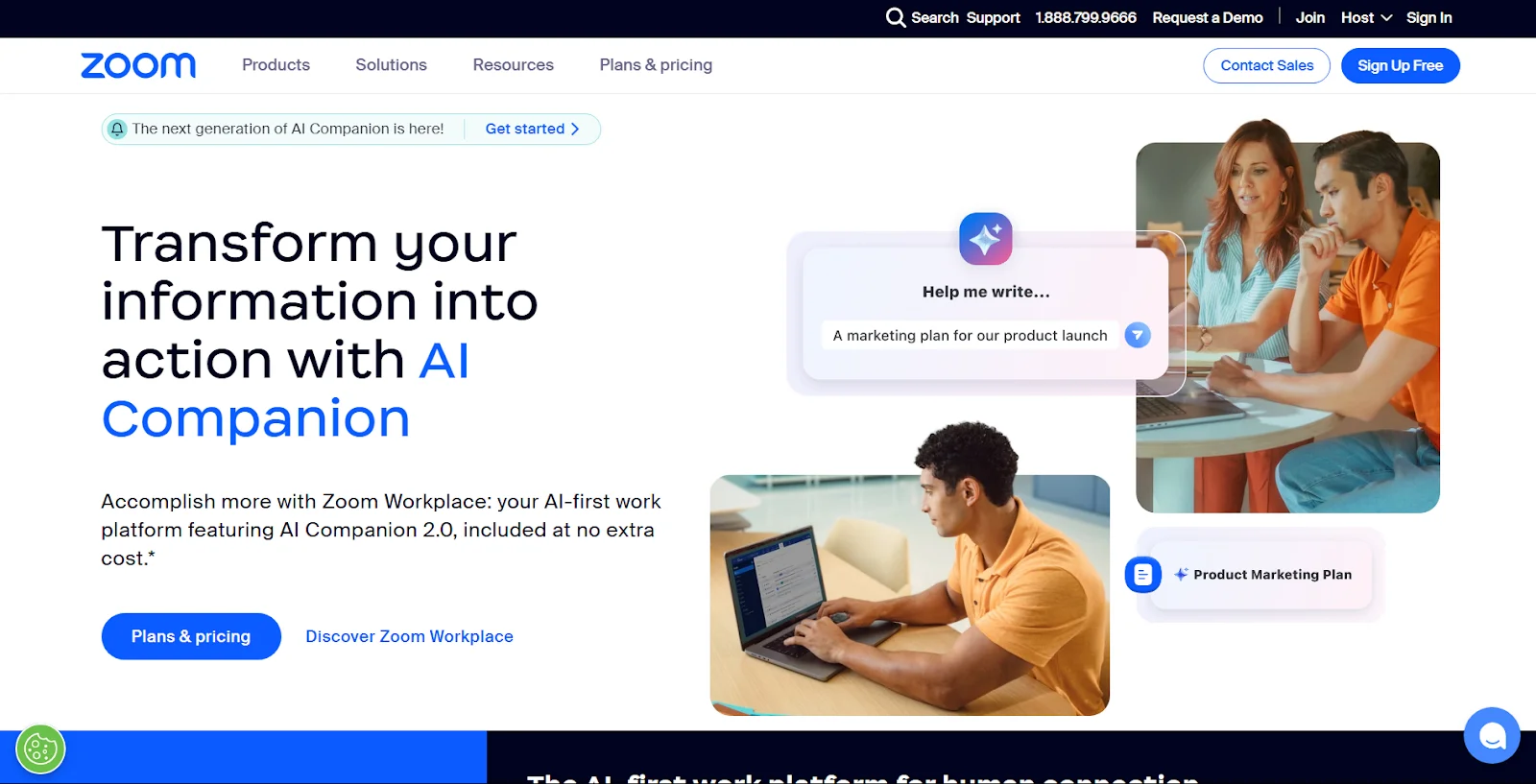
5. Zoom – Best for Video Meetings and Virtual Events
Zoom delivers reliable video conferencing for meetings, webinars, and remote collaboration. It supports large teams with high-quality audio and video performance. Recording capabilities and breakout rooms enhance productivity and structured discussions.
Key Features:
HD video and audio meetings
Breakout rooms for group sessions
Meeting recordings and screen sharing
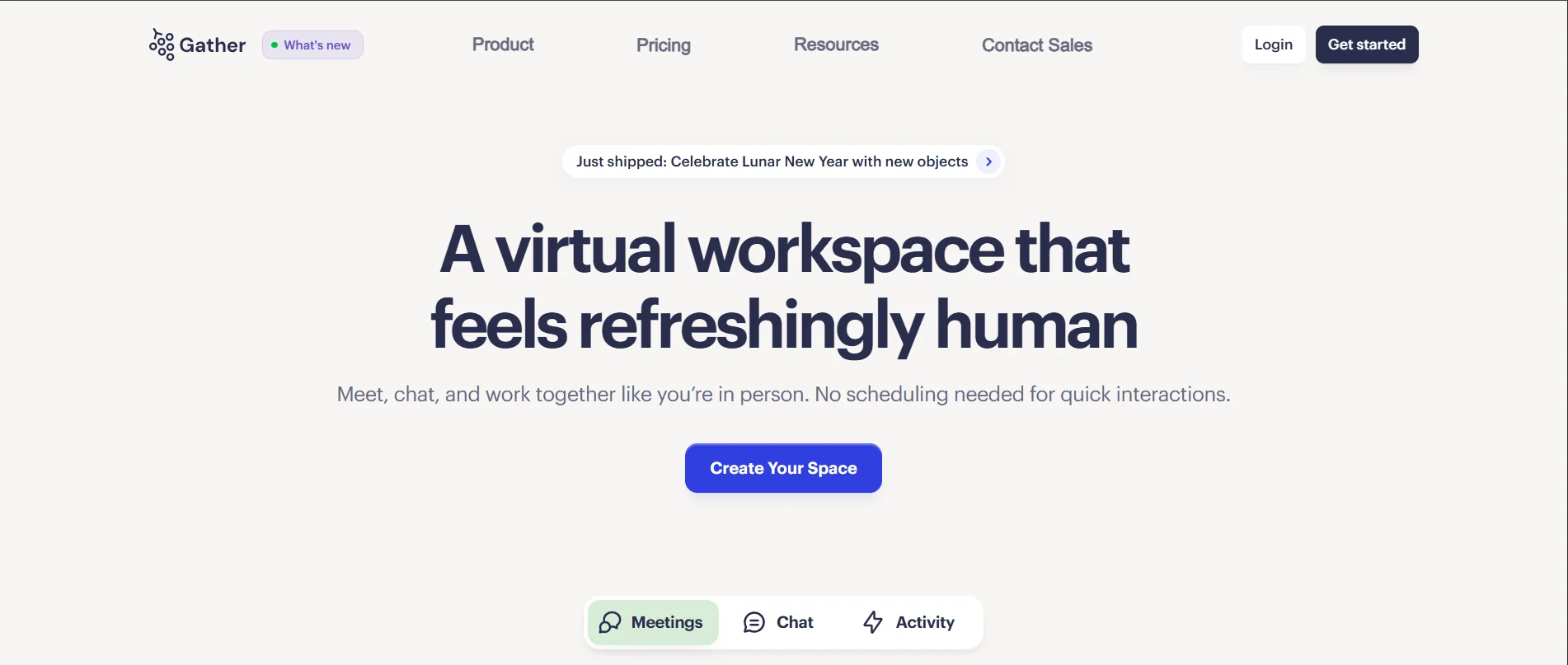
6. Gather – Best for Interactive Remote Workspaces
Gather creates a virtual office where employees move through digital spaces and interact naturally. It blends work collaboration with social engagement in an interactive environment. This approach helps distributed teams feel more connected and engaged.
Key Features:
Customizable virtual office layouts
Interactive meetings and workshops
Social spaces for team interaction
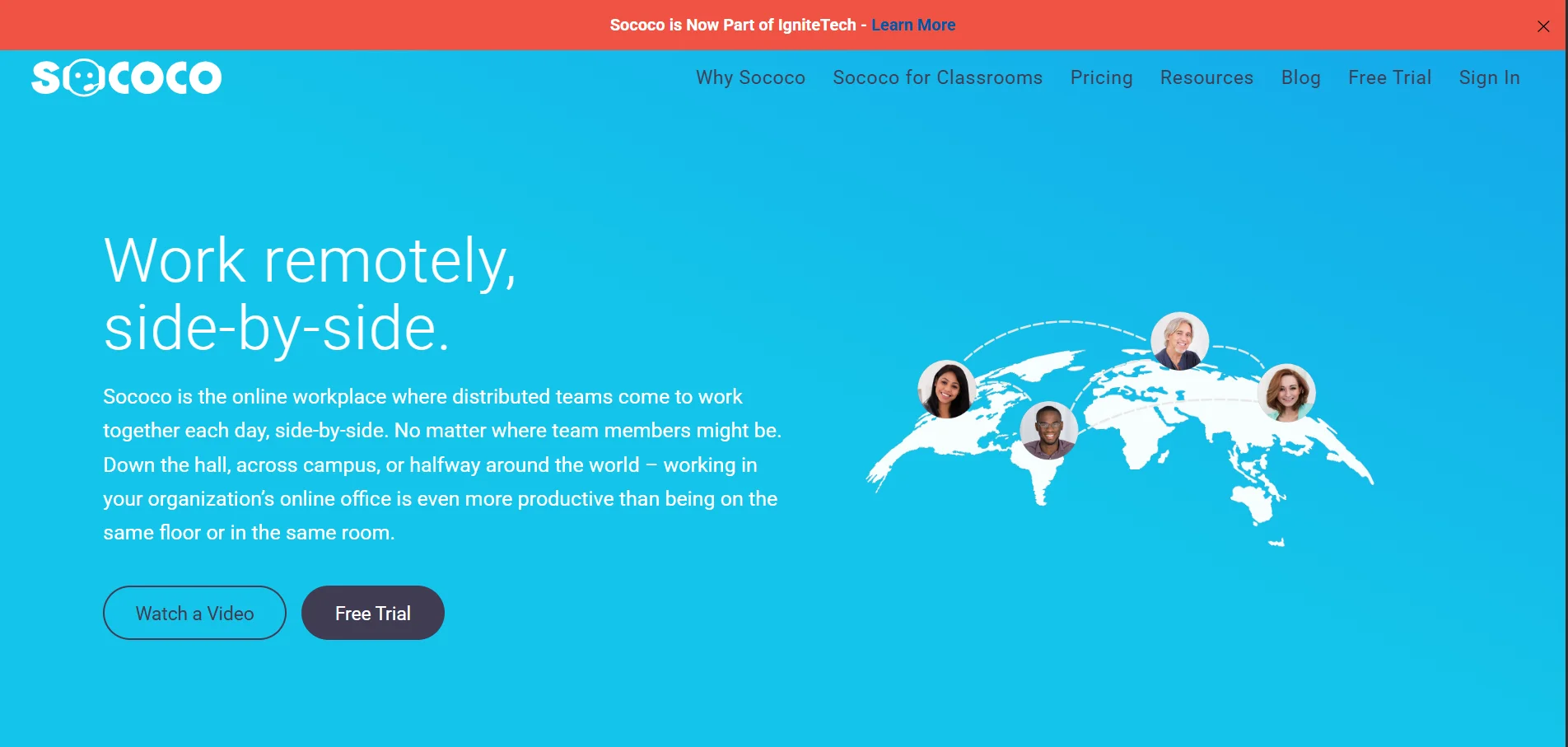
7. Sococo – Best for Visual Online Offices
Sococo offers a visual office map that shows where team members are located within a digital workspace. Employees can join rooms instantly for meetings or quick discussions. The platform encourages spontaneous collaboration similar to a physical office.
Key Features:
Digital office floor plan view
Real-time availability visibility
Quick meeting access
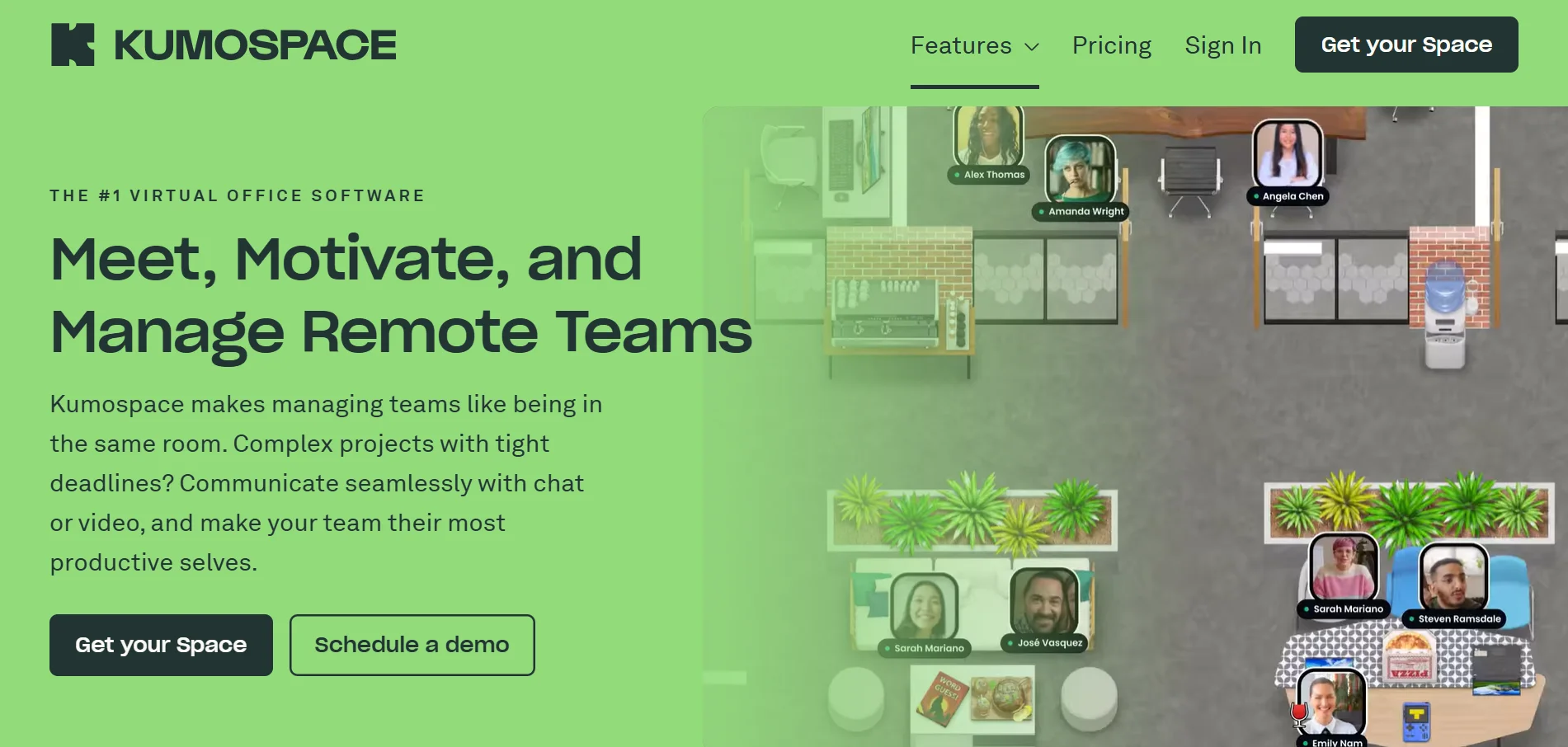
8. Kumospace – Best for Virtual Networking and Socializing
Kumospace provides immersive virtual environments for meetings, networking, and team collaboration. Employees can move through spaces and join conversations naturally. It strengthens team relationships while supporting productive discussions.
Key Features:
Interactive virtual meeting rooms
Networking and event hosting tools
Real-time spatial audio interaction
9. Workvivo – Best for Employee Engagement
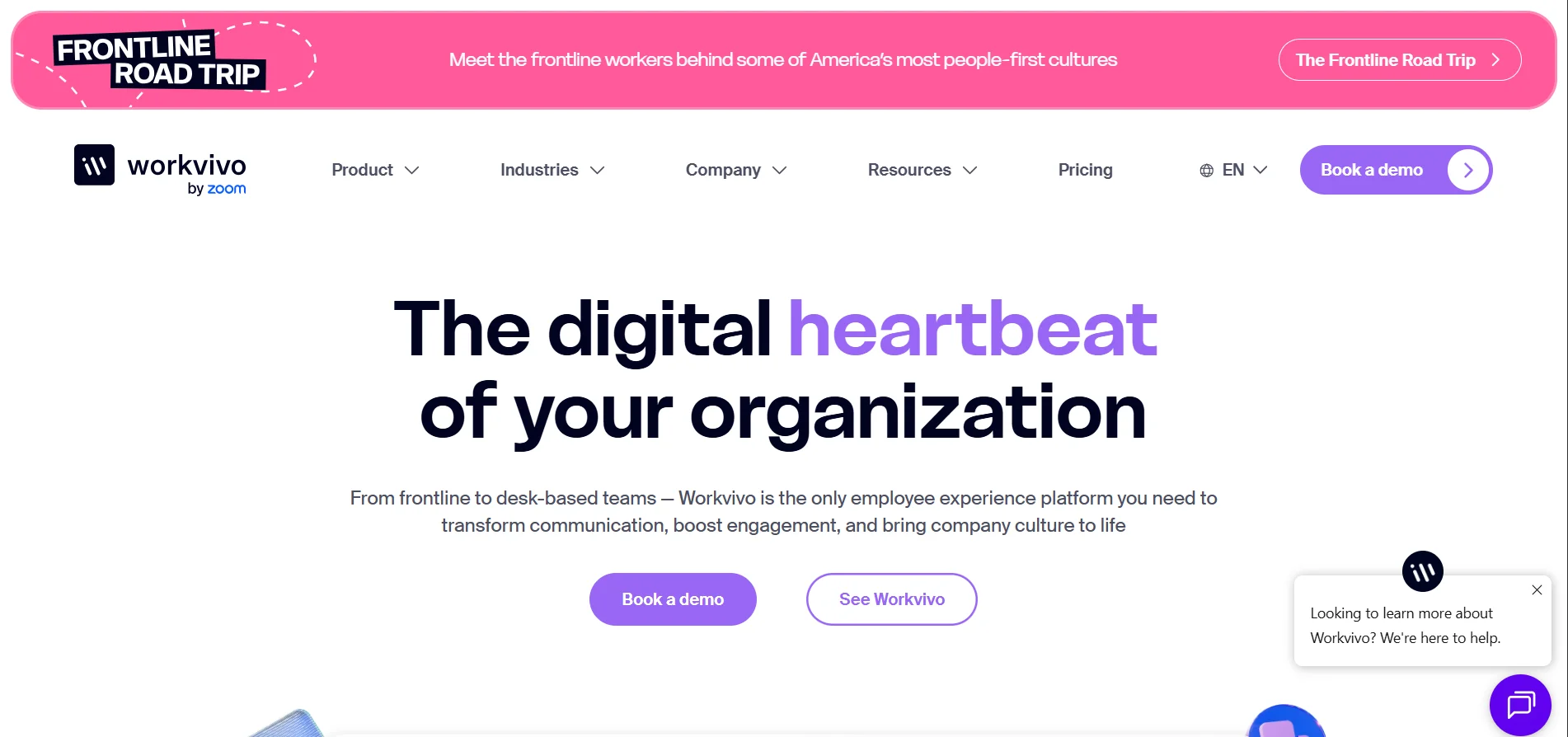
Workvivo focuses on internal communication and employee engagement for remote organizations. It allows companies to share updates, recognize achievements, and build community. The platform helps distributed teams stay informed and motivated.
Key Features:
Company news feeds and updates
Employee recognition tools
Social interaction features
10. ClickUp – Best for Task-Centered Remote Collaboration
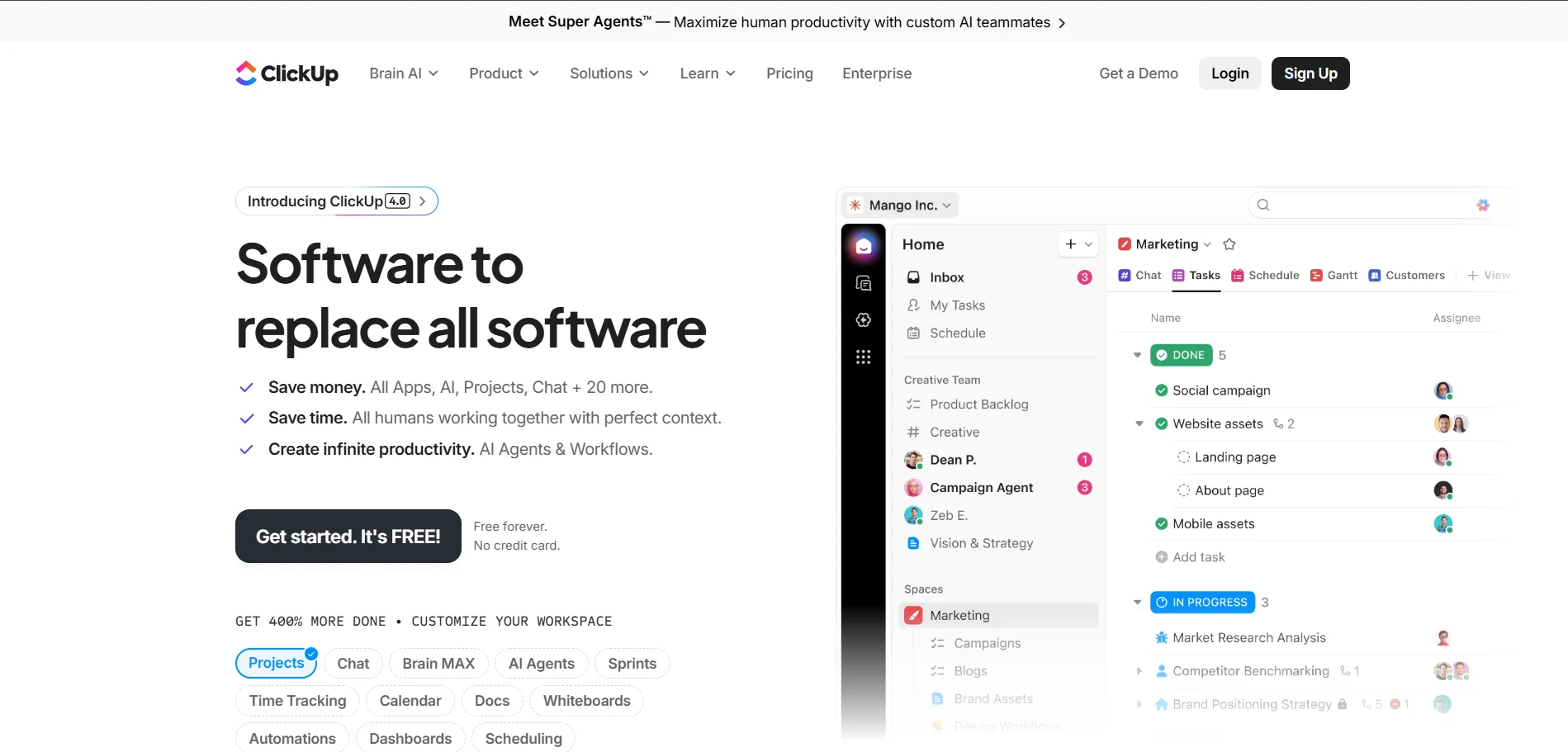
ClickUp centralizes task management, documentation, and goal tracking in one platform. Teams can assign work, monitor progress, and manage deadlines efficiently. It supports structured project workflows for remote employees.
Key Features:
Task assignment and tracking
Project dashboards and reporting
Integration with communication tools
How to Choose the Right Virtual Office Software?
Selecting the right virtual office software requires careful evaluation of your team’s structure, workflow, and long-term goals. The right choice should improve communication, simplify collaboration, and support productivity without creating unnecessary complexity.
1. Identify Your Team’s Needs and Communication Gaps
Start by analyzing how your team currently communicates and collaborates. Identify common challenges such as delayed responses, scattered files, or unclear task ownership. Understanding these gaps helps you choose a platform that directly solves real problems instead of adding new tools unnecessarily.
2. Consider Team Size and Work Structure
The size of your team plays an important role in selecting the right solution. Smaller teams may prioritize simplicity and quick messaging, while larger organizations may require advanced management and reporting features. Also consider whether your team is fully remote, hybrid, or distributed across multiple time zones.
3. Evaluate Real Time Collaboration Requirements
If your team depends heavily on meetings, brainstorming sessions, or shared document editing, real time collaboration features are essential. Look for reliable video conferencing, live document editing, and instant messaging tools. Strong collaboration capabilities reduce delays and keep projects moving efficiently.
4. Check Integration with Existing Tools
Your virtual office software should connect smoothly with the tools your team already uses. Integration with platforms such as Microsoft 365, Google Workspace, CRM systems, or project management apps helps centralize workflows. This reduces app switching and prevents disruptions in daily operations.
5. Ensure Ease of Use and Adoption
Even the most advanced software will fail if employees find it complicated. Choose a platform with an intuitive interface and simple onboarding process. Easy adoption minimizes resistance and ensures employees can start using the system effectively from day one.
6. Plan for Training and Monitor Implementation
Successful implementation requires proper training and continuous monitoring. Provide guidance to employees so they understand how to use the platform efficiently. Track usage and gather feedback to ensure the software delivers measurable improvements in productivity and collaboration.
Why DeskFlex Is the Best Option for Remote Teams
DeskFlex provides a centralized platform that supports scheduling, collaboration, and workplace visibility for distributed teams. It helps organizations manage remote and hybrid employees while maintaining structure and accountability. The system improves coordination without adding unnecessary complexity to daily operations.
Real-Time Scheduling: Book desks, meeting rooms, and shared spaces from any location.
Centralized Workflow Tracking: Monitor activities, reservations, and workspace usage in one dashboard.
Integrated Messaging: Communicate with team members and coordinate work within the platform.
Calendar Synchronization: Sync reservations and meetings with Outlook and Microsoft Teams calendars.
Video Meeting Integration: Connect seamlessly with Teams and other conferencing tools for remote collaboration.
Secure Access Controls: Manage user permissions and protect sensitive company data.
Workspace Analytics: Gain insights into space utilization, occupancy trends, and remote team activity.
Cloud-Based Accessibility: Access scheduling, collaboration, and tracking tools from anywhere.