


A Step by Step Guide to Setting Up Meeting Rooms in Google Calendar
In modern offices, the most common shared facilities are the meeting rooms. When more than two teams use the same rooms, there is inconvenience, time waste, and low productivity due to poor scheduling. To overcome this, some companies also support it by reserving rooms via Google Workspace (Google Calendar), allowing teams to book rooms directly in their calendars.
Hybrid work has altered the dynamics of office space; groups are now more demanding regarding the visibility of available rooms, workspace occupancy, and collaboration space. To develop a streamlined meeting-room management system, it is necessary to understand how Google Calendar manages room resources.
This guide covers Google Calendar room booking, setup, and how companies can enhance meeting room management with the latest workplace tools.
Meeting Room Booking in Google Calendar
A booking system will allow employees to book shared spaces automatically. Google Calendar does this using calendar resources that are mapped to physical rooms in Google Workspace. These resources appear in the event creation interface after they are set up. Employees can add a room, as they do with meeting attendees. This makes Google Calendar more than just a conference room scheduler.
1. Resource Calendars
The calendar resources in the Google Workspace Admin console are added as meeting rooms. Every resource is associated with a physical location at the office. Once the resource is created, it appears as an option when setting up meetings. When an employee chooses a room, Google Calendar will check its availability immediately, avoiding conflicts and making coordination easier.
2. Room Reservations
Booking a meeting room is the same as adding a participant. In the event creation, the employee will choose the resource they want. In case of a free room, booking is confirmed. If it is already occupied, Google Calendar notifies the organizer immediately, reducing the risk of duplicate bookings.
3. Calendar Integration
The Google Calendar booking system is famous for its integration. Users already use the calendar in their day-to-day scheduling. Adding room resources extends the known workflow.
How Google Calendar Manages Rooms
Google Workspace is a room management system that uses resource settings in the Admin Console.
Admins establish buildings, add features, and create resources, which employees can then make bookable. This structured solution allows businesses to scale room scheduling across multiple offices and locations.
1. Google Workspace Rooms
Workspace resources are created as shared rooms. They need to be configured and appear in the meeting-scheduling interface within the organization’s booking system.
Benefits of Google Workspace Rooms
- Easier booking: It is simpler to book rooms- the employees can book the room via Google Calendar without any communication with the administrators.
- Automated availability: Check-in checks to availability are automated to avoid overlapping reservations.
- Centralized scheduling: Each booking is visible in common calendars, providing a centralized perspective to ensure the organization of various spaces.
2. Room Availability
Google Calendar also checks a room’s availability before confirming a reservation. If a room is already rented, the organizer is reminded to select another date or location. In context, if at 2:00 PM, a product team arranges a planning meeting. When they add Conference Room A, Google Calendar will review the room’s schedule. When a room is free, the reservation goes through. If not, the person in charge gets a heads-up about the double-booking. This system streamlines meeting scheduling.
How to Set Up Meeting Rooms in Google Calendar
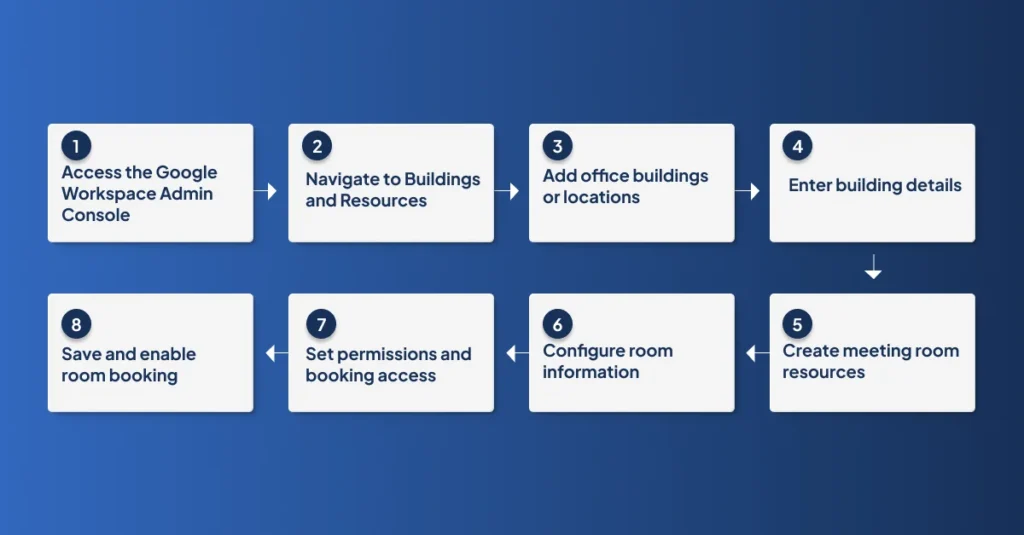
All rooms should be set up in the Google Workspace Admin Console before employees can reserve them through Google Calendar.
Step 1: Access the Google Workspace Admin Console
The administrator uses an administrator account to log in to the Google Workspace Admin Console. This is where all the workplace’s resources, such as buildings and meeting rooms, are managed.
Step 2: Navigate to Buildings and Resources
When you are logged in, visit the Buildings and Resources section. At this point, administrators determine office locations and list the rooms in each building.
Step 3: Add Office Buildings or Locations
Administrators are expected to develop an office entrance that symbolizes the physical office. Labelling buildings helps arrange rooms by location, which is handy for companies with multiple offices or floors.
Step 4: Enter Building Details
After construction, admins add important information about the building, such as the building name and address. Such information helps the user locate meeting rooms when booking a meeting in Google Calendar.
Step 5: Create Meeting Room Resources
Once the building is configured, admins can add meeting room resources at that location. Each room will be a resource that employees can choose when organising a meeting.
Step 6: Configure Room Information
Admins then provide information for each room, including the room name, capacity, and equipment. This information helps workers select a room based on the needs and size of their meeting.
Step 7: Set Permissions and Booking Access
Admins also determine permission and access controls. This determines who or whom can view and book rooms in Google Calendar. Permission is ensured to the appropriate teams to use the rooms.
Step 8: Save and Enable Room Booking
The admin saves the configuration when everything is configured. The rooms will then be added to Google Calendar as selectable resources, so employees can book them when scheduling meetings.
Booking Process for Employees
When scheduling a meeting, developers can book meeting rooms in Google Calendar.
How Room Booking Works With Google Calendar Integration
The meeting room booking software can be compatible with Google Calendar, allowing employees to book meeting rooms there.
Step 1: The organization integrates the software for meeting room reservation with the Google Calendar.
Step 2: In Google Calendar, an employee invites participants to a meeting.
Step 3: The employee picks a meeting room from the room resources.
Step 4: Google Calendar verifies the room’s availability at the selected time.
Step 5: If the room is not occupied, the reservation is automatically confirmed.
Step 6: The meeting information and room reservation are presented in Google Calendar so that employees can manage everything in a single interface.
When Google Calendar is integrated with a room booking program, employees can reserve meeting rooms more easily and conveniently. This will ease scheduling, minimize confusion, and bring all meeting and room bookings under a single system.
How to Avoid Scheduling Conflicts
When meeting rooms are busy, it is common and leads to scheduling conflicts. The booking rules can help reduce such problems in organizations.
These are some of the common practices to help avoid conflicting schedules:
- Auto-decline conflicting bookings. Sophisticated tools automatically reject overlapping bookings, ensuring no double-bookings slip through.
- Approval workflows for premium rooms. High-demand spaces, such as executive boardrooms, require admin approval to prioritize critical meetings.
- Integrated booking systems. Seamless calendar syncing provides real-time transparency, eliminating manual errors and confusion.
Best Practices for Room Management

Good room management should require clear policies, an effective time-keeping system, and frequent checks on room utilization. With a transparent booking system, room utilization, and workplace management tools, businesses can reduce conflicts and ensure meeting rooms are used productively.
1. Clear Meeting Room Allocation
Companies must provide clear guidelines on how exactly rooms are allocated and utilized. This helps avoid overcrowding and ensures that individuals select rooms that best suit their needs.
2. Defined Reservation and Cancellation Policies
Room reservation guidelines are in place to maintain a smooth process. When a meeting needs to be canceled or moved, it’s standard for companies to require employees to reserve the room. The system ensures rooms aren’t held up for no good reason, making them available for others.
3. Reservation Limits and Fair Usage
To level the playing field, many businesses set limits on room bookings. This might mean capping the number of times a person can reserve a room or restricting the duration of their stay. These restrictions ensure that everyone has equal access, preventing any one person or group from gaining complete control over a particular area.
4. Monitoring Meeting Room Utilization
Managers are supposed to monitor the frequency of meeting room use and search patterns for bookings. Usage is tracked so that it is possible to know which rooms are occupied and which are not.
5. Automation Through Meeting Room Management Software
Meeting room booking software can facilitate most of these tasks. Automation can impose guidelines, monitor usage, and generate reports that help companies manage space more effectively. It eliminates handwork and increases coordination.
Common Issues with Google Calendar Room Booking
Although reserving rooms in Google Calendar is simple, other companies encounter difficulties with it.
1. Google Calendar Rooms Not Showing
The appearance of the rooms in Google Calendar depends on the admins who add this resource to the Admin Console. Unless admins or the location settings are configured correctly, employees will not be able to view the rooms when they attempt to make a reservation. Teams might believe a room is occupied when it is not, making it difficult to hold meetings.
2. Double Bookings and Availability Conflicts
Booking conflicts are always possible when the booking rules are incorrect, and Google Calendar displays room availability. Meetings can conflict when individuals reserve adjacent times or fail to cancel or reschedule a reservation. This has the capacity of disrupting schedules and compel teams to seek an alternative room at the last minute.
3. Permission and Access Control Limitations
Admins determine who has access to or a right to book rooms. Poor access control will prevent certain individuals from accessing rooms after booking.
Limitations of Using Google Calendar Alone for Meeting Room Booking
Google Calendar allows individuals to reserve rooms; however, it does not offer advanced workplace features. It does not provide office floor plans or interactive maps.
This becomes problematic in large or multi-storey offices where individuals reserve rooms.
Moreover, workspace management is also absent in Google Calendar. In hybrid offices, it is common for workers to reserve desks, rooms, and shared areas at the same time. Handling them one at a time may cause scheduling conflicts and occupy office space.
Specialized room-booking software addresses these challenges head-on. It provides visual floor plans, centralizes all bookings, and streamlines the management of office resources.
When Do Teams Need Dedicated Meeting Room Scheduling Software?
Google Calendar is effective in simple scheduling, but it might not be as efficient as the workplace schedule demands.
1. Hybrid Conflicts Overlap
Hybrid work introduces new coordination challenges. Employees do not spend their entire days at work, and therefore, it is up to teams to determine when to join in, where to sit, and which rooms are vacant. Rooms and desks may be overbooked when a large number of individuals come on the same day, due to a lack of a well-organized system.
2. Scaling Past Spreadsheets
Some of the companies begin sharing calendars, spreadsheets, or booking manually. These apply to small-sized teams but become difficult to maintain as the company expands. With the added people, rooms, and sites, manual tracking may lead to errors, double bookings, and even mixed records. Specialized reservation systems streamline functionality and maintain records in coordination across teams.
3. Shared Space Chaos
Confusion can occur in an office where different teams share rooms, as it’s unclear who is supposed to use which room. Having a room reservation software provides a picture of occupied spaces, as higher visibility and coordination reduce confusion and better utilize unused rooms.
4. Need for Utilization Data
Data is important for decision-making when companies redesign offices to achieve efficiency. Conference room scheduling software provides detailed analytics on utilization, booking history, and peak times. Such insights reveal unused rooms and help change office layouts. Using quality usage data, companies can make informed decisions about workspace planning and resource utilization.
Google Calendar vs Meeting Room Software
Organizations often compare Google Calendar booking with dedicated meeting room management systems when planning workplace scheduling. Both tools help teams reserve spaces and coordinate meetings, but they serve different levels of operational complexity.
Google Calendar
Google Calendar is well-known because it is included in Google Workspace. Many companies use it to plan meetings, organize teams, and manage daily work. It is user-friendly, easy to use, and well-known, so teams can start using it very quickly. Moreover, it is also compatible with Gmail and other Google applications and is cost-effective, as many companies already subscribe to Google Workspace.
One weakness is its limited features: you cannot see the office floor plans, and you are not aware of the locations of rooms on the maps. The other problem is that it will not recommend a room based on the meeting’s size, equipment, or nature. It does not provide much information about room usage or the number of people attending, either.
Room Management Software
Room management software is designed to control actual office areas. It provides additional functionality that helps businesses use office rooms more efficiently and prevent fights. You will have access to features like interactive floor plans, automated scheduling, and real-time availability.
Moreover, it can churn out reports, offer visualizations of room usage, pinpoint areas that aren’t getting enough use, and, in the end, help make smarter choices about how to design an office. Despite its expense and the time it demands, this software is favored by many companies, particularly for complex office layouts or to manage hybrid work arrangements better.
| Feature | Google Calendar | Meeting Room Management Software |
|---|---|---|
| Primary Purpose | General meeting scheduling | Dedicated workspace and room management |
| Ease of Use | Simple and familiar | May require training |
| Workspace Visualization | No floor maps or visual layout | Interactive office floor plans |
| Automation | Basic scheduling only | Smart room recommendations and automation |
| Analytics | Limited reporting | Advanced workplace analytics |
| Hybrid Workplace Support | Limited | Designed for hybrid workspace management |
| Cost | Included with Google Workspace | Extra subscription fee |
The Future of Meeting Room Management
Smart scheduling, live availability, and hybrid work support tools will be used in the future meeting rooms. The systems currently in place in the workplace help reduce conflicts, optimize space, and create efficient meeting areas within an organization.
1. Understanding Meeting Room Utilization
Companies are increasingly concerned about the use of rooms. Analyzing data on bookings and usage, they can identify unused rooms and adjust the office design to accommodate employees’ needs.
2. AI-Driven Meeting Scheduling
Artificial intelligence is beginning to assist with meeting planning. In the future, AI may automatically recommend the optimal room based on teammates’ availability, room size, preferred location, and previous bookings. This reduces manual work and saves time on scheduling.
3. Predictive Workplace Analytics
Analytics software is becoming intelligent. Rather than displaying past utilization, future tools will anticipate room demand and provide recommendations for office space changes to ensure companies do not face issues in advance.
4. Integrated Workplace Management Platforms
Tech is shifting towards a one-platform solution: desk booking, room booking, and analytics. By connecting these tools, businesses can more easily manage hybrid work and provide a flexible workspace.
Improving Google Calendar With DeskFlex
Companies that already use Google Calendar to book meeting rooms can significantly enhance this system with workspace management software. DeskFlex integrates with Google Calendar to provide interactive office floor plans, real-time meeting room availability, workplace utilization analytics, and hybrid work environment scheduling. This integration also allows organisations to use the familiar Google Calendar interface while gaining advanced workplace capabilities.
Want to simplify meeting room scheduling?
Discover how DeskFlex integrates with Google Calendar to deliver smarter workplace coordination.
Conclusion
Google Calendar provides a viable starting point for meeting room management. With the help of resource calendars, organisations will be able to book the conference rooms and prevent simple booking conflicts. Nevertheless, the concept of hybrid work and the growth of organizations require more advanced workplace tools. Meeting room analytics, visual booking systems, and integrated workspace management are becoming indispensable. When a workplace management tool like DeskFlex is used with Google Calendar, an organisation can simplify schedules, improve teamwork, and utilise office spaces more efficiently.
Frequently Asked Questions (FAQs)
How do I add a meeting room to Google Calendar?
To add a meeting room to Google Calendar, a Google Workspace administrator must add the room as a calendar resource in the Admin Console. The administrator defines the building, the room name, capacity, and amenities. When the room is added, it will appear as a resource option when employees book meetings in Google Calendar.
How do I book a meeting room in Google Calendar?
To reserve a meeting room, open Google Calendar and create a new event. Include the meeting attendees and choose your desired meeting room from the Rooms or Resources section. The system will then verify the room’s availability. If all is clear, the booking is confirmed.
How can I check meeting room availability in Google Calendar?
To see if a meeting room is open, simply add it to your event in Google Calendar. After you’ve done that, the calendar will show you when the room is available, making it easy to pick a time that works for you.
Why are meeting rooms not showing in Google Calendar?
Meeting rooms sometimes disappear from Google Calendar for several reasons. Perhaps the room wasn’t set up as a resource in the first place, or maybe the settings are incomplete. It’s also possible that the user simply doesn’t have permission to view it. To resolve this, administrators need to review the setup, the location settings, and user access permissions.
Can Google Calendar prevent double booking of meeting rooms?
Yes, Google Calendar has an auto-decline option. When activated, it will automatically reject the meeting requests if the time slot is already taken. This is to ensure there is only one meeting in a room at any given time.
Is Google Calendar enough for managing meeting rooms in hybrid offices?
Google Calendar offers a straightforward way to schedule rooms, but that’s just the beginning in today’s hybrid workplaces. Companies often require more sophisticated tools. Think visual office maps, workplace analytics, and integrated desk booking systems.
What is the best meeting room booking system that works with Google Calendar?
Many companies rely on dedicated meeting room management systems that work with Google Calendar. DeskFlex, for example, is a solution that augments Google Calendar with workplace analytics, interactive floor maps, and sophisticated scheduling tools.
Can Google Calendar be used for both desk booking and meeting room booking?
Google Calendar’s resource calendars can be used to manage meeting room bookings. However, they have some limitations when it comes to reserving both desks and meeting rooms.